ayumi
A simple, calm way to see your steps and how far you walk. Follow your day or look back, at your own pace. No pressure, ads or unnecessary noise.
The name ayumi is Japanese for walking, and for the path you make by walking.
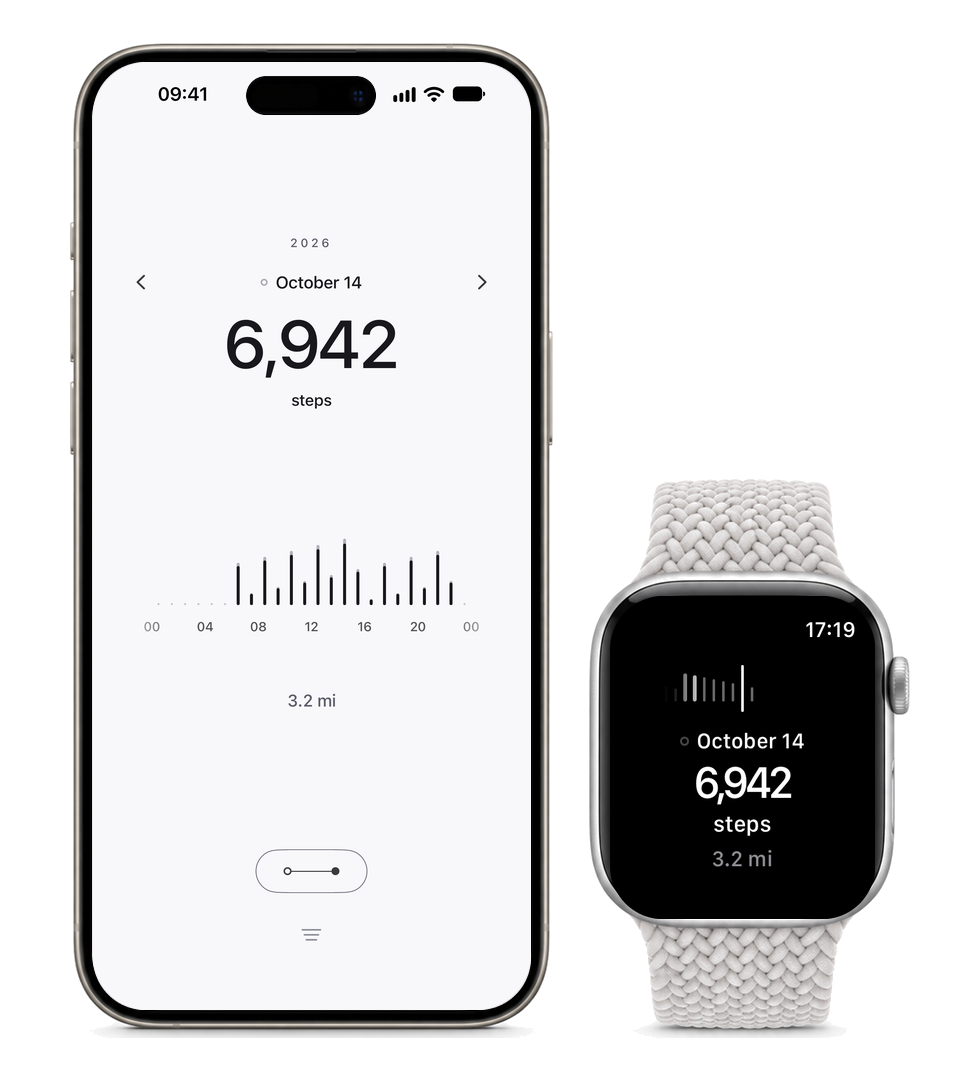
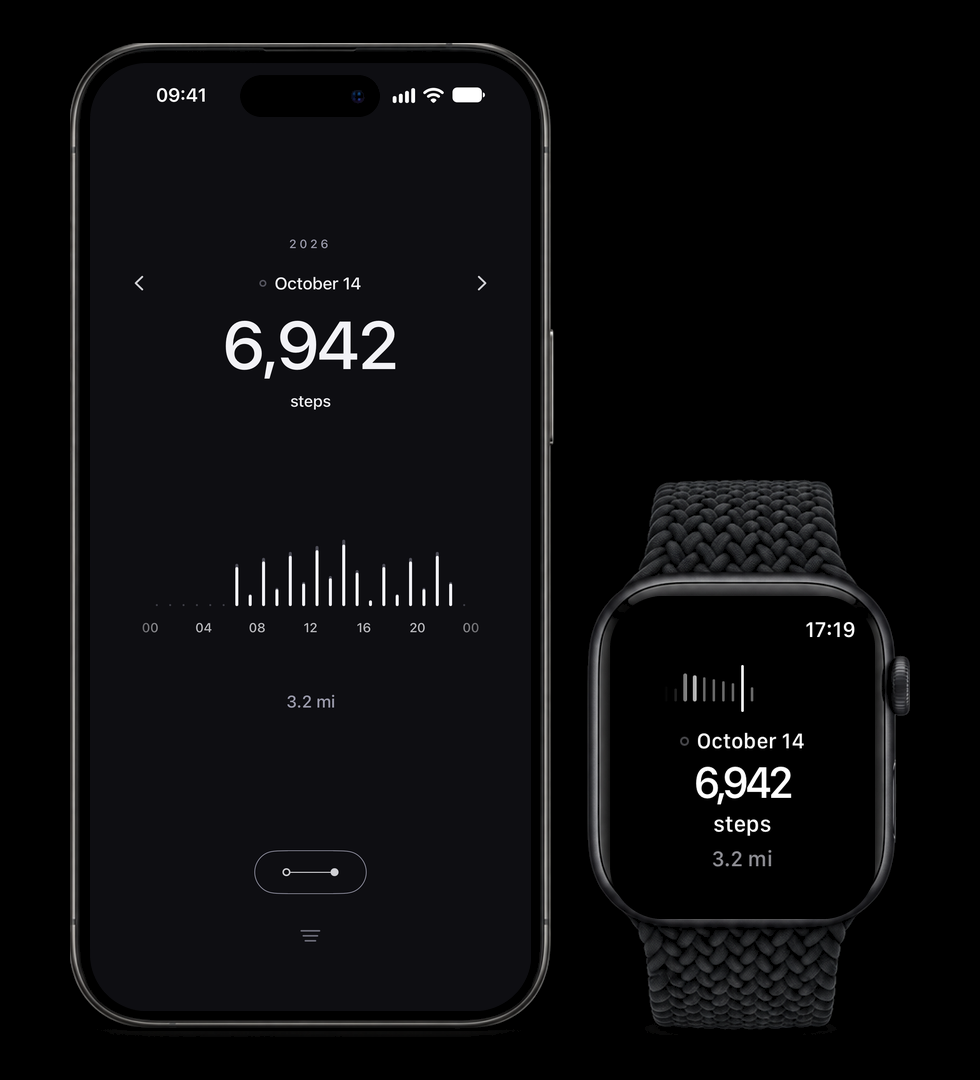


A simple, calm way to see your steps and how far you walk. Follow your day or look back, at your own pace. No pressure, ads or unnecessary noise.
The name ayumi is Japanese for walking, and for the path you make by walking.
Browse your days and explore weeks, months and years. Compare periods side by side and see how your activity changes. Follow a personal step goal if you like.
Steps and distance in the app, on your Home Screen, Lock Screen and wrist. No challenges, badges or reminders.
No ads and no accounts. ayumi only reads from Health, and nothing leaves your device.
Check that Apple Health has recorded steps or walking and running distance, and that ayumi is allowed to read them. Open Health, tap your profile picture and find ayumi in the list of apps with Health access. Enable reading for both types, then return to ayumi. Days without recorded data remain empty.
Health access may be limited to recent data. In ayumi’s access settings in Apple Health, allow all recorded history for both steps and walking and running distance if you want to see older days. Then return to ayumi. Only history that exists in Health and that you have chosen to share can be shown.
ayumi reads the values recorded in Apple Health. It does not count steps itself or estimate distance from your step count. Check the same date in Health, including its data sources and their priority. Your iPhone, Apple Watch or other apps may contribute data. Corrections should be made in Health or in the app or device providing the data.
Widgets update periodically rather than with every step. iOS manages when updates appear to help preserve battery life, so the time between updates can vary. Opening ayumi refreshes its data from Apple Health and requests a widget update when values have changed. The widget may still take a little time to catch up.
Yes. You can choose a language just for ayumi without changing your iPhone’s language. Open Settings on your iPhone, then Apps › ayumi › Language, and choose the language you prefer.
ayumi supports English, Swedish, Norwegian Bokmål, Danish, Finnish, Icelandic, German, French, Spanish, Italian, Dutch, Portuguese (Portugal and Brazil), Polish, Czech, Ukrainian, Greek, Turkish, Japanese, Korean and Simplified Chinese.
Have feedback, a question or a problem? Email me at david@rohr.se.